Frequently Asked Questions:
Q: How do I set my video card to display the small monitor's native resolution of 800x480?
Q: How do I set my video card to display the small monitor's native resolution of 1024x600?
Q: There are video noises on my VGA small touchscreen and the text is not clear, how can I fix that?
Q: When I use the touchscreen, the mouse cursor doesn't follow my touch, how can I fix that?
Q: I can't calibrate my touchscreen sucessfully. How do I calibrate my touchscreen?
Q: How do I get the On-Screen Keyboard onto my screen?
Q: How do I install my monitor into my headrest for rear seat passenger viewing?
Q: What should I do when the backlight inside my monitor no longer works?
Q: How do you replace the backlight inside the monitor? Can I replace it myself?
Q: Why are there black points or bright dots (red, blue, or green) on the LCD monitor?
Q: Why should I buy from a Xenarc Authorized distributor / reseller?
Q: How do I set my video card to display a monitor's native resolution of 800x480?
A: You can use a program called Powerstrip available from http://www.entechtaiwan.com. Please visit the website to download the free trial version and to check for compatibility with your video card. Click the following image for a larger view of the settings that you have to make for your monitor that has a native resolution of 800x480. For the 705 series, you have to go into the OSD menu and change aspect ratio setting to 800x480. For the 706 series, you have to press "PC Auto" on the remote once you have supplied the monitor with a 800x480 signal. When you are successful, the monitor would show 800x480 60Hz.

For Linux users, you can use the following Modeline in your XF86Config file to get 800x480:
Modeline "800x480" 31.5 800 864 944 1000 480 508 511 525 -hsync -vsync
Q: How do I set my video card to display a monitor's native resolution of 1024x600?
A: You can use a program called Powerstrip available from http://www.entechtaiwan.com. Please visit the website to download the free trial version and to check for compatibility with your video card. Click the following image for a larger view of the settings that you have to make for your monitor that has a native resolution of 1024x600.

For Linux users, you can use the following Modeline in your XF86Config file to get 1024x600:
Modeline "1024x600" 48.964 1024 1064 1168 1312 600 601 604 622 +hsync +vsync
Q: There are video noises on my VGA screen and the text is not clear, how can I fix that?
A: You can use the PHASE adjustment found in the OSD Menu. The OSD Menu is accessible by pressing on the "M" button on your monitor. If that still doesn't work, the noise might have came from your power source. You might want to install a noise filter to clean up the power source going into your monitor.
Q: When I use the touchscreen, the mouse cursor doesn't follow my touch, how can I fix that?
A: If the mouse cursor doesn't correspond to the location of your touch, then you will have to run the 4-point or 25-point calibration. The instruction manual is in your driver CD or could be downloaded from our website under the driver download section.
Q: I can't calibrate my touchscreen sucessfully. How do I calibrate my touchscreen?
A: You will have to launch the touchkit utility. Select the touchscreen monitor that you want to calibrate and run the 4-point or 25-point calibration. In the calibration utility, you would have to “press” and “hold” the blinking X or blinking Circle (depends on which version of software you have) for a couple of seconds until the blinking X or blinking Circle turns from red to green. Then, “let go” of the touch and the blinking X or blinking Circle will move to the next corner of the screen. The blinking X or blinking Circle would usually start from the left lower corner, and then move to the right lower corner, etc.
Q: Everytime I boot up my Windows XP system, the touchscreen calibration (white screen with the X in the corners) appears automatically. How do I disable it??
A: This is because during the touchscreen driver setup, you checked the check-box "Auto 4Pts Calibration Utility." If you don't want the touchscreen calibration program to appear everytime you boot up your Windows XP, you would have to uninstall the Touchscreen driver, and re-install it with the check-box unchecked.
Q: How do I get the On-Screen Keyboard onto my screen?
A: The On-Screen Keyboard in many of our images is part of Microsoft Windows. You can find it by going to Start, All Programs, Accessories, Accessibility, On-Screen keyboard.
Q: How do I install my monitor into my headrest for rear seat passenger viewing?
A: You will have to purchase an optional headrest shroud. Installation instruction can be found here. Please follow the procedure in page 2 and page 3 of the installation guide.
Q: What should I do when the backlight inside my monitor no longer works?
A: Don't worry, we have you covered. If the monitor is still under warranty, we will replace the backlight for you free of charge. If the monitor is out of warranty, we will replace it for a reasonable parts and service fee.
Q: How do you replace the backlight inside the monitor? Can I replace it myself?
A: We replace the backlight inside a clean room with the correct backlight optimized for your LCD module. We don't suggest you to replace the backlight yourself since it is a complicated process and requires a clean room to prevent dust from getting into your LCD module.
Q: Why are there black points or bright dots (red, blue, or green) on the LCD monitor?
A: The LCD screen is made with high-precision technology. However, in rare instances, you may experience black points or bright points of light (red, blue, or green) which may appear constantly on the LCD screen. This is not a malfunction and is part of the LCD manufacturing process. However, we guarantee that the effective dots is more than 99.999%. This is a guarantee better than most of the major LCD monitor manufacturers. And if you are still not satisfied with your screen due to any number of dead pixels, you can always send it back within 30 days of purchase and we'll replace it for you free of charge!
Q: Why should I buy from a Xenarc Authorized distributor / reseller?
A: Xenarc provides our customers with the highest quality and newest technology available. Our excellent customer, warranty, and sales service is only extended to customers of our authorized resellers. Out of warranty service, support, and future product upgrade is also only available to customers of our authorized resellers.
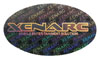
Q: How can I tell if my recently purchased Xenarc product is an authentic, brand new, Grade-A Xenarc product containing all of the latest features?
A: All official Xenarc Technologies products from 3rd Quarter of 2004 and on come with a Xenarc Laser Hologram Sticker. Please inspect your Xenarc product upon receipt.
Q: What if I need to take the monitor apart to perform a custom installation? Would that void the warranty?
A: You will void the warranty if you break the warranty seal. However, we understand that in certain cases a customized installation requires the monitor to be taken apart. Therefore, Xenarc Technologies will still cover the unit for up to 30 days from the date of purchase provided that the unit is purchased through an authorized dealer. This coverage is also limited to how the installation is done and whether the malfunction is the result of the installation. After 30 days your monitor can be repaired for a fee.